
The requirement for adding a payment card
Whether you're adding your first payment card or an additional payment card, this can only be added as part of a transaction. The transaction can be an account balance top up or paying for your direct mail campaign.
Stannp.com does not accept Amex (American Express) for single payments, auto top-up payments, or any other payments.
Add your first billing address and payment card
Once logged in, click 'Settings' in the left toggle menu then select 'Billing' in the settings drop down. Then, you can:
-
Add a new Billing Addresses on the left
-
Top up your account to Add a new card, on the right
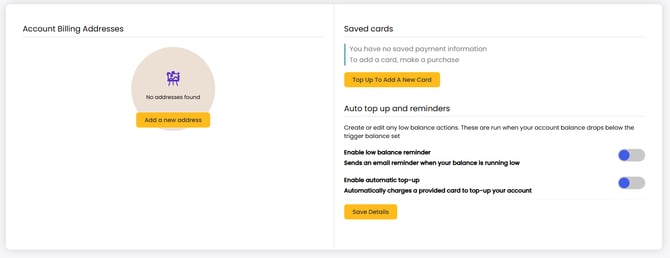
From here you can also:
- 'Add low balance reminders' to email you when action is needed to increase the account balance
- 'Enable automatic top-up' to make sure your campaigns are processed smoothly
More information on this is linked at the bottom of this page.
Keep your billing address up to date
It's important to keep your active billing address up to date as Stannp will add this to generated invoices. If you have multiple billing addresses added you can edit, delete and set the correct one as the default billing address. Do this at any time in your settings.
Add additional addresses and payment cards
The easiest way to add additional billing addresses and payment cards to your account is in the 'Balance Top-up' page of your settings.
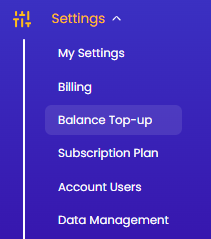 On this page you can add additional addresses and payment cards with a balance top up transaction.
You can add additional addresses without completing a transaction. This can be done in the 'Billing' or 'Balance 'Top-up' pages under 'Settings'.
Once multiple options are available, you can select default preferences for each.
Remove addresses and payment cards
You can only delete a billing address or payment card if there are multiple saved.
Once logged in, open Settings and select 'Billing'. If the address or card is set as the default payment method, set another as default and then you can delete this.
You can only add a new payment card as part of a transaction so you may need to wait until you're ready to top up your balance or pay for your next campaign.
Add an auto top-up and low balance reminders
Two features to create optimal direct mail workflows and keep your mail items going smoothly.
Setup low balance reminder emails and automatic top up of your balance in your account settings. This is especially useful if you have automated API workflows.
More information is available in our knowledge base HERE