Initial reporting view
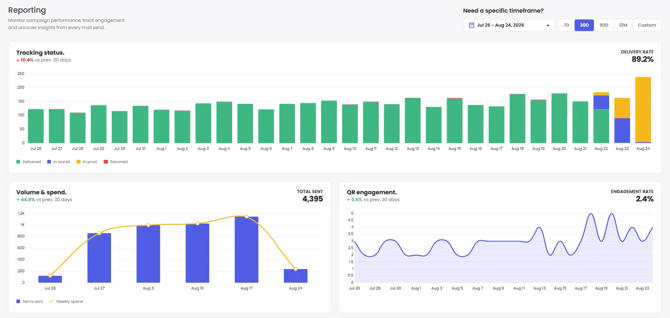
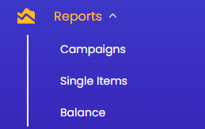 This is the first view you see when you click 'Reports' in the left toggle menu, and will default to show the 30 days or tracking status, volume & spend, and QR code engagement at the top of the page.
Here's an example. (Spend is in your local currency.)
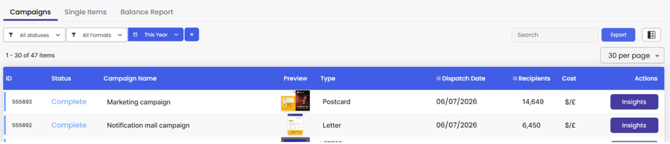
Below this overview, your most recent direct mail insights will be displayed and default to your most recent sending type: 'Campaigns' or 'Single Items'
If you have most recently sent a bulk campaign, you will see an overview and then a table displaying each campaigns. The 'Insights' button in the table will take you to specific campaigns.
Single Items insights
Single items will display items sent through an API integration and Virtual Printer single sends and you can adjust filters to populate the table of single mail items.
To the right of the table item you will see up to two or three options:
'View' to see the generated mail item.
'Tracking' which will show you detailed information for each status update, beyond the Status column in the table. Detailed tracking insight is available to paid plans only.
'Cancel' is available only before your mail item has started the production process. This option will disappear once no longer available.
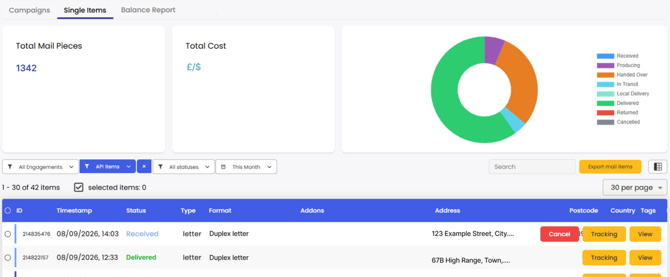
All this information can be exported with the 'Export Mail Items' button to the top right of the table.
Campaigns insight page
Once you select the 'Campaigns' tab in the initial reporting page, the campaigns table will populate to 'All statuses', 'All formats', and 'This month', by default. Adjust table filters as desired.
The table will display the Campaign ID, Status, Campaign Name, Preview, Type, Dispatch Date, Recipient number, Cost.
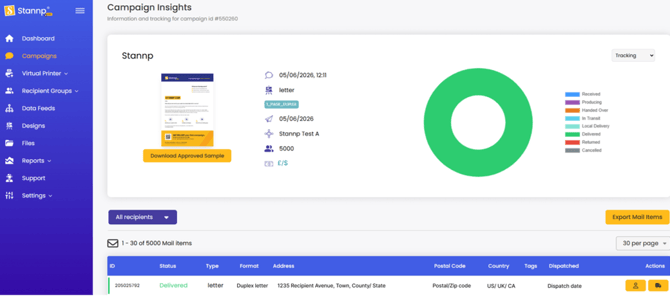
Selecting the 'Insights' button that will take you to the campaign insights within the 'Campaigns' section with comprehensive information all about this specific campaign.
You can download the approved preview (this will only show the sample mail items you would have seen when approving the campaign), view the campaign details (created date, format and additional option detail, dispatch date, the selected recipient group, recipient group size, and cost). The coloured circle on the right is the tracking overview which will update as the campaign progresses towards delivery.
The table shows all the Direct Mail Items included in this campaign, with ID, Status, Tags, Format, Address info, and the Dispatch date. You can also use the table filter to view only recipients at a specific delivery stage OR those who have engaged (scanned a Stannp generated QR code). Read more about that in our knowledge base here
The two options under 'Actions' are:
'Recipient Insights' that will show you a timeline of events for specific individual recipients.
'Tracking' which will show you detailed information for each status update, beyond the Status column in the table.
Both recipient and tracking insights are available to paid plans only.
Recipient insight page
The recipient insights page can be accessed from individual campaigns, as above, or when viewing your recipient groups. From recipient group additions, mail item sends via campaigns or single items, to QR code engagement, the 'Insights' will show you everything recorded event in one timeline.
If you would like to amend any of the recipients data, you can switch over to Recipient Properties and edit any information.
The event timeline is unlocked with any paid plan.
Balance Report and Billing History
You can view a 'Balance Report' in the initial reporting page, and view more insights through 'Billing History', accessed via the profile dropdown at the top right of the screen.
In Billing History, you can view Invoices, Balance Usage Statements, Payment Acknowledgements, and Credit Notes in a table. This table can be filtered by status and timeframe.
API reporting page
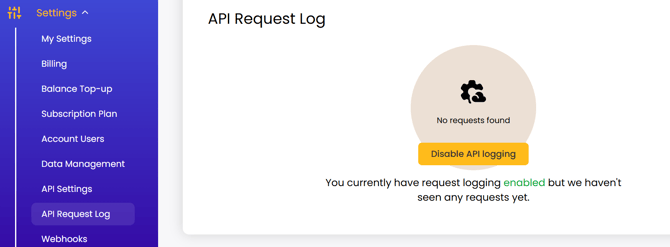
The API request log is a useful reporting tool for any user who primarily uses API. You can access this via the settings menu, and clicking on API Request Log. This must be enabled by you or another account user to populate.
Once enabled we will record and display the last 50 requests made to your API key, for the next two weeks when it will switch off. Enable this again in the same way, as desired.
You will be able to see the request body, response and request headers. As well as the timestamp that the request occurred. This is very useful as it allows you to see test API requests.