
What difference will using custom fields make?
When someone picks up their mail, the items personalized to them will often attract more attention and achieve greater engagement vs. a generic mail item.
Each custom field is represented by a data column heading. Some of these are standard Stannp.com data headings and you can also add your own custom headings to use these in direct mail.
-
title
-
firstname
-
lastname/fullname
-
company
-
job title
-
address 1
-
address 2
-
address 3
-
city
-
county/state
-
country
-
zipcode/postal code
There are two ways to create custom fields. The Automatic method and the Manual method. We will always recommend the Manual method as that gives you greater control over your variables.
Automatic creation
When uploading your mailing list to our platform, add custom column headings and map these in the upload process. Previously uploaded customer columns will map automatically, new custom headings will be recognised and automatically map next time they're uploaded.
This is the column mapping screen when uploading recipient data files.
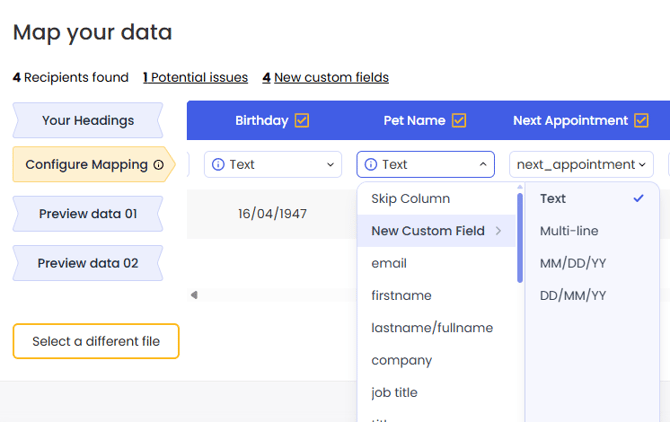
Click 'Potential issues' or 'New customer fields', above the table, to view popup information.
New custom headings will map as 'Text'. You can select an alternative custom preference or map the heading to a standard Stannp.com heading, with the dropdown, if this was not automatically mapped.
We always recommend using the 'Text' option over 'Multi-line' as this option is only used for large quantities of characters and does not work for filters.
The automatic method is very useful for quickly sorting your data. However, you're unable to control the automatic name given to your data. Additionally, if it is a date or email field then it might be incorrectly formatted. In this case we recommend using the Manual method.
Manual creation
Firstly, select the "Data Management" option under "Settings".
Add your custom data field name and select the type from the drop down. There is a key at the bottom of the page to support you.
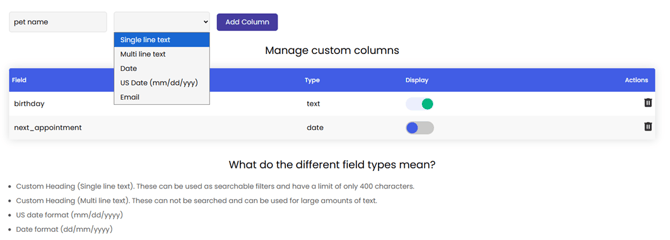
You can also manage your custom columns here. Toggle their use (Display) on/ off and delete unwanted custom columns.
Using custom fields
Custom variables can be used to add text, images, or QR codes. These support articles can all be found here: Designing your mail