This article covers:
Changing between simplex and duplex
Adding a cover page or document to a letter
What is Simplex and Duplex?
Our campaign designer has many features. In this article, we will explain how to increase how many pages you send to one recipient and what Simplex and Duplex means. You can choose how you want your letter printed and the pricing will automatically adjust.
Simplex
Simplex, in printing, is a single sided page document, with your content printed only on the front of each page. For example; sending eight single sided pages to each of your recipients, would be referred to as an "8 page Simplex Letter". The back of each page will be left blank.
Duplex
Duplex, in printing, is a double sided document, with your content printed on both the front and back of each page. For example; sending eight pages printed on both sides to each of your recipients, would be referred to as a "4 page Duplex letter".
Multi-page letters default to 'Duplex' and letters can only be sent in one print mode.
This is important based on what will be included and if you have preferences on how you want letters sent.
How to change between Simplex and Duplex
On our platform, you can freely change between Simplex and Duplex at any time. When designing your mail (in either the 'Designs' or 'Campaigns' area), click on the mail piece settings (highlighted on the left menu), and adjust the 'Print Mode' drop down to Simplex or Duplex.
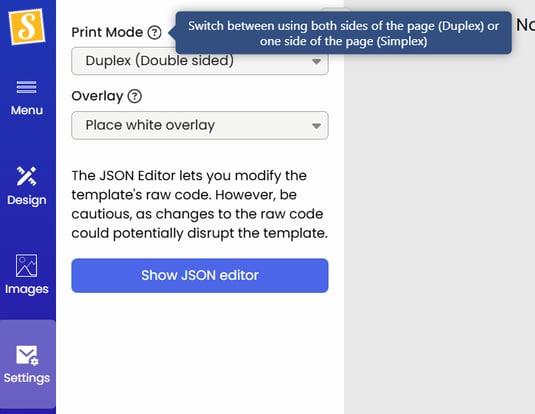
Selecting 'Simplex' print mode is $0.08 per extra sheet, whereas adding pages printed whereas sticking with Duplex print mode is only $0.10 per extra duplex sheet (front and back print).
If you're only sending a 1 page duplex (a two sided colour letter), this would be an $0.08 cost uplift. See our detailed pricing page for info.
Adding and arranging pages
When in your design, head to the design command options at the top of the page and simply click the '+' add page button. You'll see the page number range to the right increase and you can toggle thorough the pages there too.
To delete a page, go to that page and hit the trash can.

Add, copy, and delete pages in the dedicated 'Pages' area.
Drag and drop to change the page order. This this will switch the pages over, NOT place the page, so check the page order and replace others as required.
Add a cover page or a document to a letter
Add a cover page
All of our letters are sorted into an envelope with a window, meaning the address will always be printed within the clear zone on page 1. You cannot move or remove the address area. It is specified by the mail carrier in each region.
If you want to use a full page of content with no address block, then consider adding a cover page for the address printing, and moving your full page of content to page 2. This will leave the address page 1 blank, aside from the address and postage marks.
Add a document to a letter
Remember that all pages must be printed in the same way, as selected (simplex or duplex).
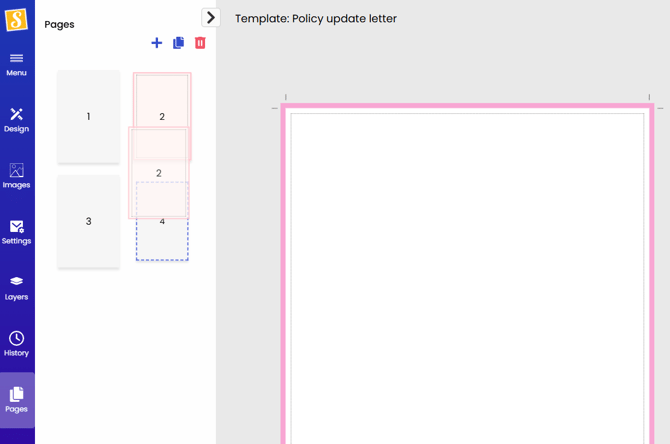
If the duplex default is applied and you want to add an additional document after your cover letter, make sure you start your additional document on page 3. Page 3 is a new sheet when printing duplex. Add a page as page 2 that can be filled with letter content or left blank.
In the image above, Page 1 will be the cover letter (front) with page 2 being the blank reverse (back). Pages 3 and 4 are then the additional document being printed on front and back of a second sheet of paper.
How to upload the document
Upload a single PDF template containing your cover letter and the document, in 'Designs' or at the 'Campaigns' stage. See image 1 below.
Alternatively, you can:
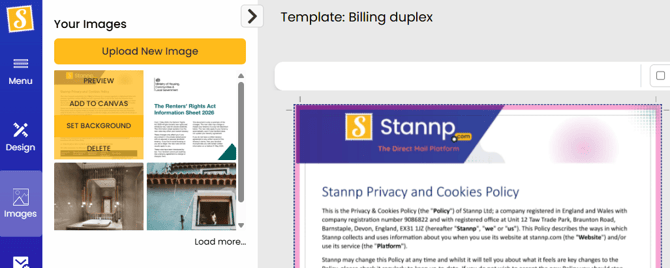
- Create your cover letter then upload each document page as an image. Then set these as your background on additional pages. See image 2 below.
or
- Upload your PDF document then add pages to create your cover letter. You can then change the order of your mail in the 'Pages' design area. See image above.
Image1: 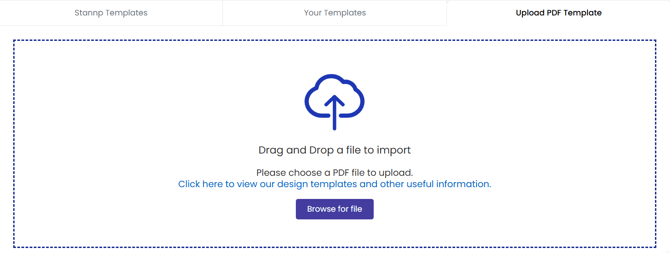
Image2: