
Create a template in your Designs area
Want to speed up creating your campaigns? You can save time and increase design consistency by setting up a template.
Whether you're on a free subscription or one of our paid subscriptions, you can use this feature in Stannp.com. View the subscription plans here to see the feature limits.
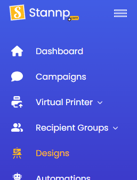 Create, edit, manage, and download your design templates in the 'Designs' area of your Stannp.com account
From here you can see all of the templates you've created in the past. To the right you'll be able to create a new template. Select the format you wish to make a template for then you'll either be able to upload a PDF if you have your design already generated. Or make it from scratch by using our blank canvas designer.
If you have a paid subscription, you can save multiple templates. You can create your next templates in the same way as the first (starting with a blank canvas or one of our editable templates) or copy one of you own templates. Select the template you want to copy and the 'Copy' button will appear for selection (see image below).
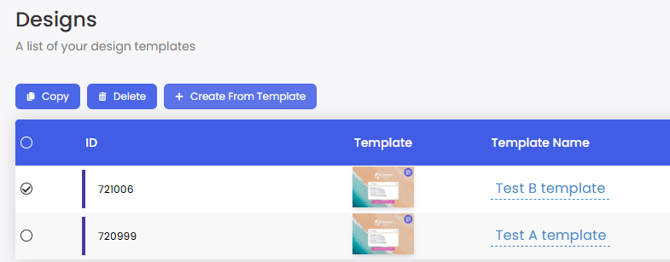
The copy feature is great if you're running a A/B test and only want to make very specific alterations OR if you have branding and design styles that you want to remain consistent across your campaigns.
Add detail in the campaign, rather than the template
Templates don't need to be the finished design. You can add text, images, QR codes, and other content in your campaign AFTER you select your template to use. This is great when adding variable content or campaign specific content.
Check out this article about adding variable content for more info.
Save a campaign design as a template
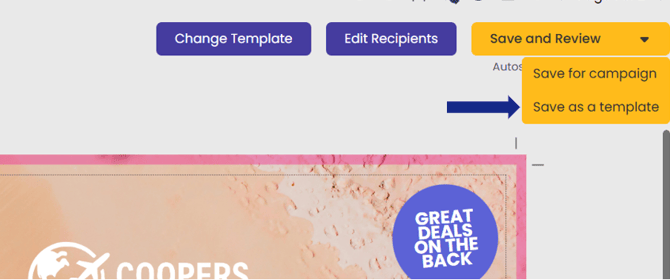
If you're setting up a campaign and like the design you're creating, you can turn it into a template. In the Save dropdown, select 'Save as a template' where you can name and save this.
You can view all of your templates, regardless of format, in your 'Designs' area.
Once you select a design format, only templates matching this format will appear in the 'Your Templates' area.