If you want to personalise mail to individual recipients, Stannp.com enables this by offering the ability to add dynamic variable content.
You can add custom variable content when uploading recipient data, or manually create this in your account settings. You can find out how, here.
It's as simple as including the column headings in your data file and mapping these on upload.
All variables are case sensitive and must be added in lower case. This is especially important if you are manually entering these. The Stannp.com variable dropdowns will only display the correct lower case naming convention.
Add variable text to direct mail
You can add this to an uploaded PDF template or a design you start in Stannp.com.
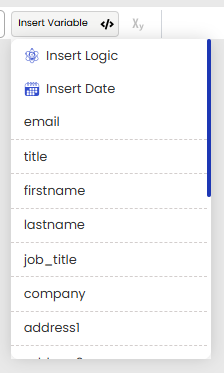
Add a text block, or click into an existing text block. Use the "Insert Variable" button at the right of the toolbar and select your variable data field.
You can also type { to bring up the menu. All of your available data fields will be here to chose from.
If you are uploading a letter PDF, you can only add dynamic variables by adding a Stannp.com text block, and adding the variable into that. A variable cannot be pulled through to a variable uploaded in your PDF. It's effectively an image, not a live text field.
If you're adding a variable to your mail greeting, add the greeting to the text box as well. "Dear {firstname}", as this will line up nicely and look like it was added together.
If the variable content is in the middle of a sentence/ paragraph, make sure there's enough space so this doesn't print over the uploaded letter content.
Whether you're adding new variable data fields or typing one in to add this to your design, variable data fields are case sensitive. Be sure the inserted data variable and the recipient data is an exact name match.
Insert Date
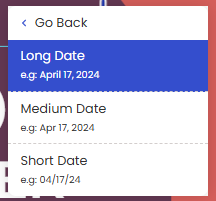 Selecting 'Insert Date' will add the date that your letter is processed for printing. Ideal if you're sending a letter or postcard that you'd like to automatically and accurately date stamp each time without you needing to add the date.
Add variable images to direct mail
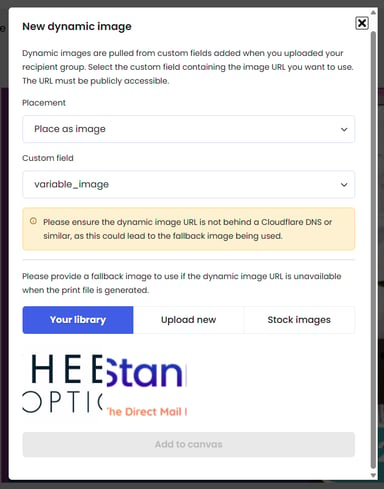 You can set up your design so that a different image shows for each recipient. This can be useful to further personalize direct mail campaigns.
-
Select 'New Dynamic Image' within the 'Images' menu option
-
Select if you want to place your image (to place and adjust) or set as your background
-
Confirm the custom field that will contain the image URL for each recipient.
-
Select a preferred fallback image. This is useful in case the variable image is not available, for any reason. See highlighted message below for more information.
IMPORTANT:
-
The images you wish to include must be available on a public server so that we can access the files at the point of processing and printing (the sending day).
-
Servers, where images/ content is stored, may set a default time limit for content availability (e.g. 24 hours). Some users extend this content availability to a longer period (up to 1-2 weeks in some cases) to account for weekends, public holidays, or any other potential time delays.
- If the image is not available when requested, the fallback image will be used. If no fallback image is added as the placeholder, Stannp cannot populate an image.
Add variable QR code destinations to delight customers
Have you created a PURL/ dynamic landing page to offer high relevance and value to customers? You can add this to your recipient data by adding the links to a column in your in the CSV data upload or via the API connection.
-
Add recipient specific destination links to a column with a clear heading, and map this as a custom variable field during the upload.
-
Add a Stannp.com QR code to your design.
-
Enter the custom variable to the open text destination field with a curly bracket at each end - {}, and the exact naming convention listed in 'Data Management' (in your settings).
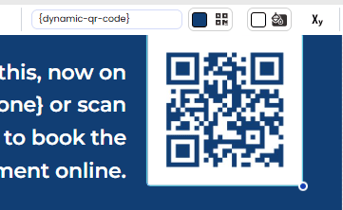
The QR code will then become dynamic and send individual recipients to the intended destination URL.
If the custom variable, in 'Data Management' is dynamic-qr-code, then the custom field should be entered as {dynamic-qr-code}
Any inaccuracy in naming convention will cause the variable to become invalid.
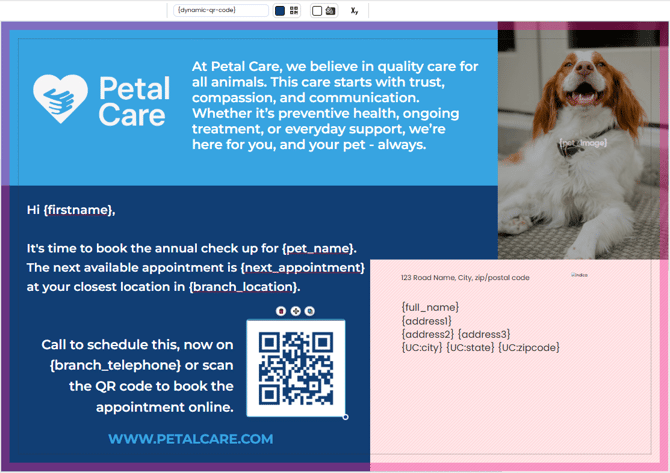
What could a mail design look like with all these dynamic variables?
In this postcard example, text, image, and QR codes will all populate with recipient specific content.
You can, of course, add variable content into any mail format in the Stannp.com designer.