
When creating your mail item as part of sending a mail campaign or creating a design template, you can add design elements with the 'Quick Action' buttons.
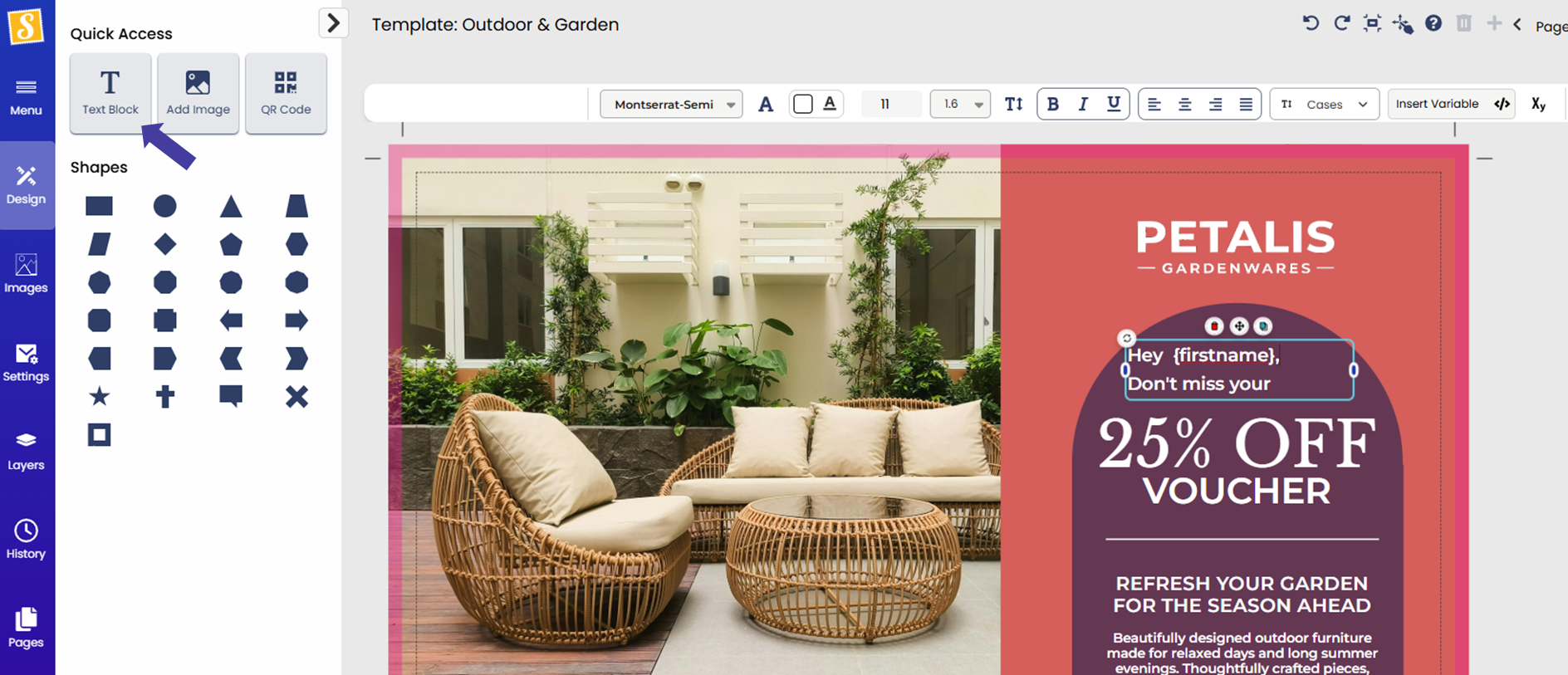
Lots of text features are available and will appear in a toolbar just above your design when you click on a text block.

- Font drop down. Stannp's default fonts and your uploaded fonts will be available to select from.
- Add Font 'A' button. Click here to upload your own custom font.
- Change the font color.
- Common colors and template colors are shown.
- Under 'Pick a color you can click the left color box to enter the RGB code and use the color match "eye dropper" and enter a hex code on the right
- Font size adjustment
- Line height adjustment
- Fix the text block height
- Apply bold, italic or underline to your text
- Align text within the text block
- Apply a case format
- Add custom variables fields. These fields are taken from your data
- Adjust the positioning with the 'Xy' button at end of the toolbar
Hover over the toolbar item for a reminder of what each does.
Does your text appear to have strange spacing or formatting?
Pasting copied text from another source, such as Microsoft Word, may contain hidden formatting. This could result in strange spacing or lost content.
We suggest typing your text into a new text block.
If you still want to copy text from another source, paste it into a simple text/ plain text editor, such as Microsoft Notepad, copy it from here and then paste it into your text block.
Add variable text to your design
You can also add variable custom fields to your text to make your letter or postcard personal to each recipient. An amazing way to boost engagement!
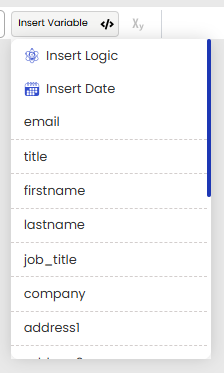
Add a text block, or click into an existing text block. Use the "Insert Variable" button at the right of the toolbar and select your variable data field.
You can also type { to bring up the menu. All of your available data fields will be here to chose from.
See more about creating new custom variables HERE
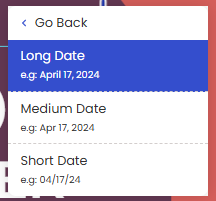
Insert Date
Selecting 'Insert Date' will add the date that your letter is processed for printing. Ideal if you're sending a letter or postcard that you'd like to automatically and accurately date stamp each time without you needing to add the date.
Whether you're adding new variable data fields or typing one in to add this to your design, variable data fields are case sensitive. Be sure to use the exact name of the variable.