
What images can you upload to my design?
You can upload new images to your Stannp.com account, use your previously uploaded images, and make use of the Stannp.com image library. Free to use images available in the designer.
Whatever image you're using, there’s two ways you can add an image to your direct mail design.
-
‘Add to canvas' if you want to adjust and place your image
or
-
'Set as background’ to fix your image to the background of your design
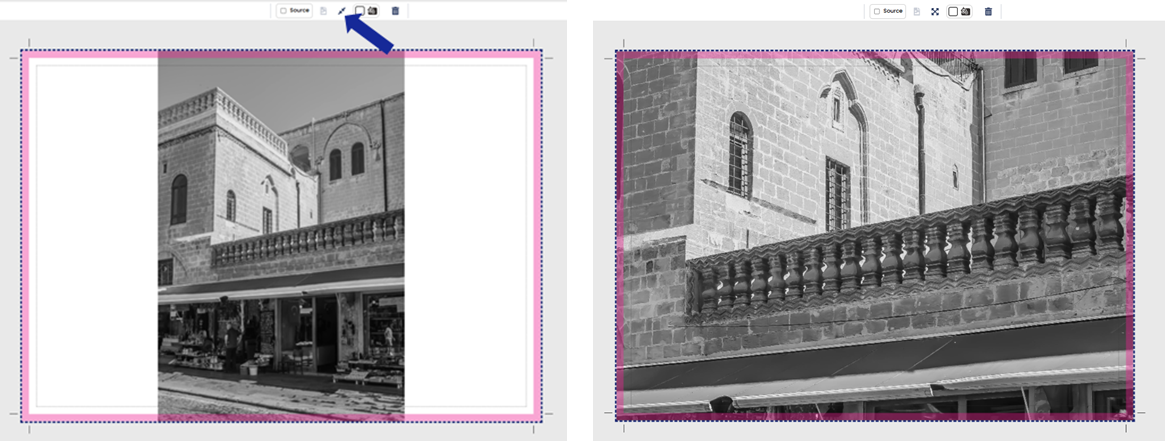
Images can have sizing embedded and resolution restrictions. For example: If you set a portrait image as your background, this will not reach edge to edge. More information below under the 'Set background' section.
View image options
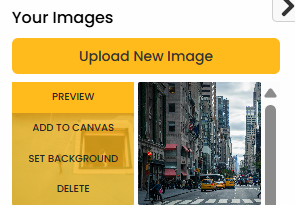 Once you have your chosen image, hover over to see options to:
-
Preview
-
Add to canvas
-
Set as background.
-
Delete: This will appear for your uploaded images.
For an optimal experience and print finish, we recommend using JPG images with a max 10mb file size.
Add to canvas
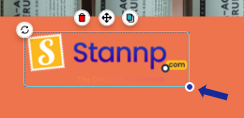 When choosing 'Add to canvas', your image will be added to the top left of your design.
You can drag and drop to your preferred location and use the other image options to rotate, enlarge, copy, delete and more.
Set background
If you set your image as the background, this will be centred with all other design elements added on top of this. You cannot re-position or manually re-size background images which is important if the image you're adding does not fill the page.
You have alternate options to adjust background images - Click the 'Intrinsic Background Size' button, arrowed below, to expand the image to meet all edges. This may mean you lose parts of the image that already meet edges.
The other option is select 'Add to canvas' and adjust size and placement as desired or edit the image offline before uploading the updated image.
Dynamic images
You can set up your design so that a different image shows for each recipient. This can be useful to further personalize direct mail campaigns.
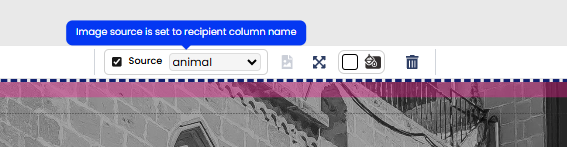
To do this you must first add an image as a placeholder. Once uploaded, select the image and the 'Source' check box option will appear. See image below. Tick this box and select from your custom fields list.
IMPORTANT:
-
The images you wish to include must be available on a public server so that we can access the files at the point of processing and printing (the sending day).
-
Servers, where images/ content is stored, may set a default time limit for content availability (e.g. 24 hours). Some users extend this content availability to a longer period (up to 1-2 weeks in some cases) to account for weekends, public holidays, or any other potential time delays.
- If the image is not available when requested, the default image will be used. If no default image is added as the placeholder, Stannp cannot populate any image.
If you need any help setting up a custom field, we have an article for that! Click here to learn how to create a custom field.