Stannp.com supports businesses of all sizes to send documents and notifications to their customers and other recipients.
It's simple to do and you have have two options for getting these setup yourself, with a cover letter.
If your cover letter is an odd number of pages.....
....make sure that you add a blank page between the cover letter and document.
As the default print mode is Duplex (printed on both sides), the blank page will keep page numbers even and ensure the document insert is not printed on the back of a cover letter.
Adding a document and letter as one PDF
In 'Designs' or as part of a 'Campaign', use the 'Upload PDF Template' option. Your letter template can be as basic or detailed as you prefer, as you can always add letter content in the campaign process.
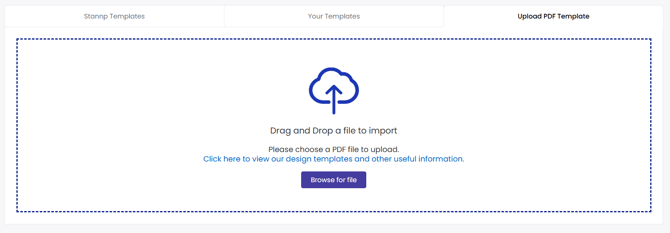
Once uploaded, you can then add text blocks, images, QR codes, and other elements that you want added to your mail design.
Add pages to your design, and create your cover letter
You can upload your document with the above method.
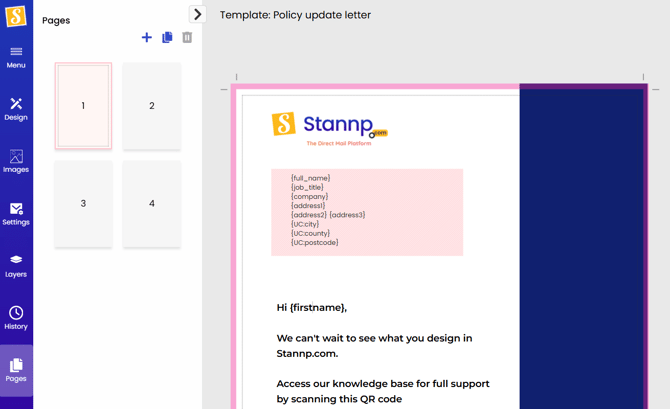
Once uploaded, proceed to your design, add pages, and sort the page order. Read more about how to do this, here.
In image2 below, a 2-page policy was uploaded. Two blank pages were then added using the 'Add Page' command at the top of the design page. Use the 'Pages' option in the left toggle menu to re-order your pages. This switches the pages over. It does not "insert" the page. Click on each page to make sure you're happy with the order.
As 'Duplex' is the standard print mode, and the cover letter is a single page, page 2 here is blank. This means the cover letter back will be blank and the policy will be printed on the front and back of the second sheet of paper.
Image1

Image2
Final check and review, before sending
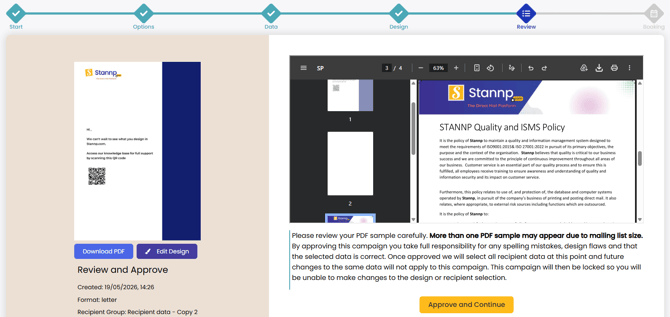
As well as reviewing the page order in the design 'Pages' section, you will also have visibility of this and the ability to download a preview, at the 'Review' stage prior to scheduling and booking your campaign.